The Phrozen Shuffle 2019 is a capable resin 3D printer, but like many machines of its era, it suffers from one annoying problem: noise. The stock stepper drivers produce that characteristic whine during Z-axis movements that can drive you crazy during long prints. I understand that you shouldn’t sleep in the same room as an SLA printer due to resin toxicity, but the thing is, you can hear this printer even from other rooms.
Spoiler: The hardware upgrade was successful and the printer is now whisper-quiet. The software side revealed some interesting limitations that would require custom firmware to fully overcome.
Hardware Overview
Main Board Orange Pi PC (Allwinner H3 SoC)
Motion Controller Custom GRBL board (GRBL 1.1g)
Display 4K Mono LCD (2560x1440) DMG85480C050_06WT
Touchscreen DWIN DGUS HMI display
Stepper A4988
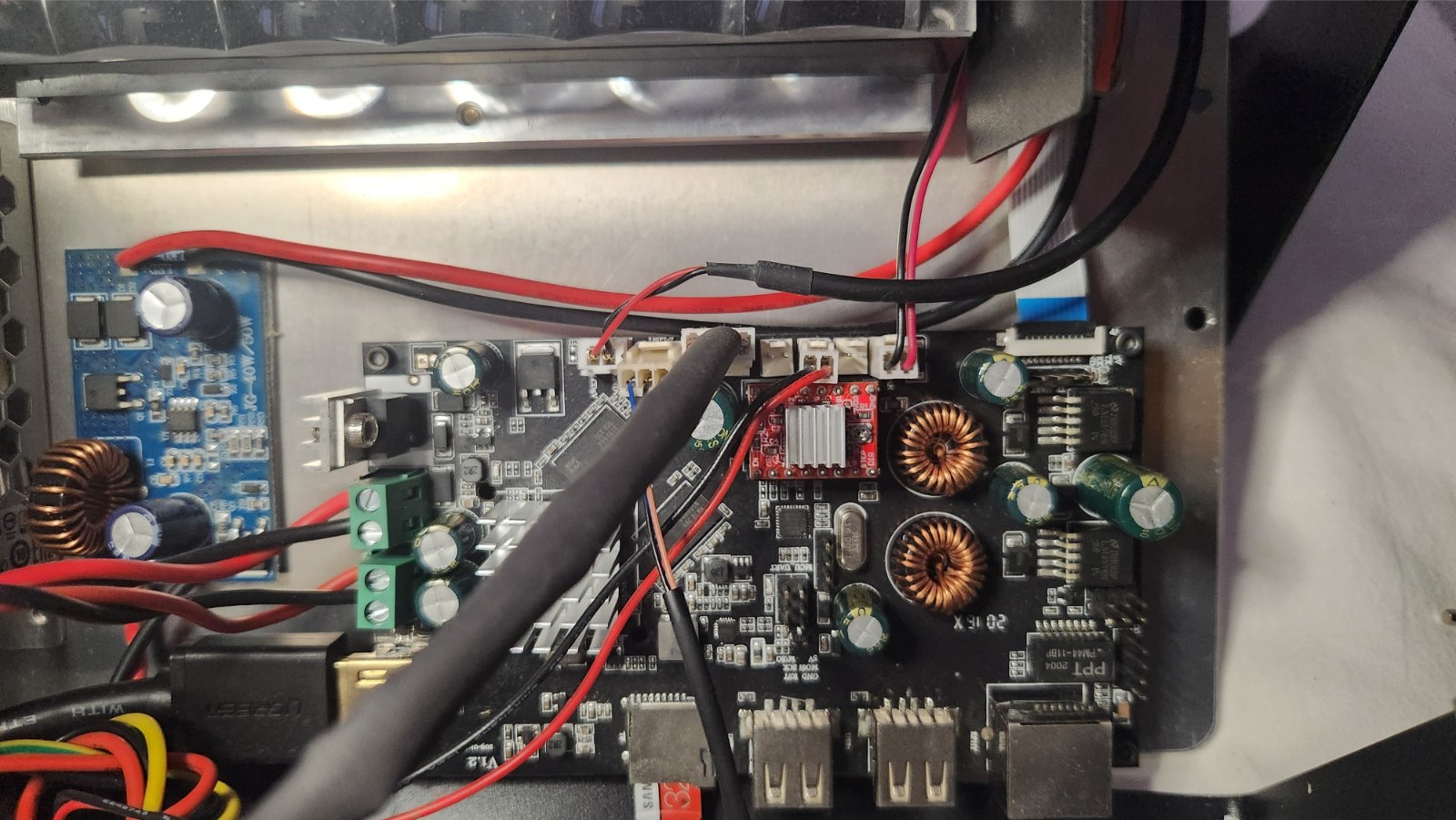

Serial Ports
ttyS1 (GRBL), ttyS2 (HMI)
The Orange Pi runs a custom Python firmware (/root/python.sla), not a standard one, that coordinates between the touchscreen, motion controller, and UV LCD.
TMC2208 Stepper Driver Upgrade
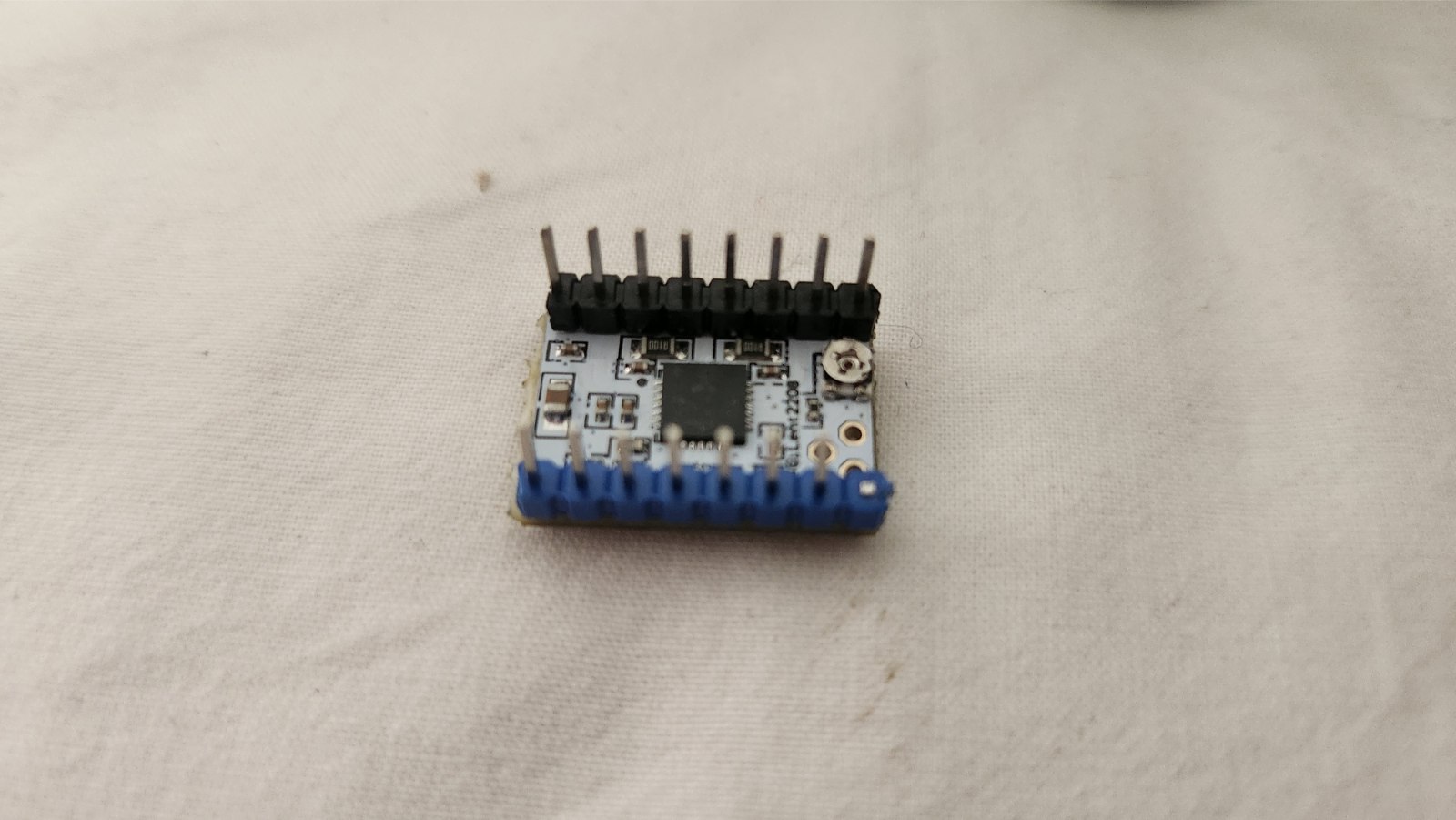
The TMC2208 is a drop-in replacement for A4988 drivers that offers:
StealthChop - Nearly silent operation
256 microsteps - Smoother motion (interpolated from 16)
Better thermal performance - Runs cooler
Stall detection - Can detect skipped steps
The Phrozen's stepper driver board has a few quirks that required attention:
The stock driver board uses jumpers for microstepping configuration (M1, M2, M3). Fortunately, the UART pins were unpopulated, meaning I didn't need to cut any traces for UART communication, though I'm running the TMC2208 in standalone (legacy) mode anyway.
Here's where it gets interesting. The TMC2208 has an active-low ENABLE pin, meaning:
LOW (GND) = Driver enabled, motor powered
HIGH = Driver disabled, motor free
The stock board's ENABLE signal logic was inconsistent with the TMC2208's requirements. To ensure the driver is always active, I removed the ENABLE pin from the driver and shorted the board's pad directly to GND. By the way, never try this on a FDM printer as motors will never relax when enable pin is disabled. It could turn into a fire hazard easily.
This keeps the driver permanently enabled, which is fine for a Z-axis-only printer like the Shuffle. The motor will always be powered when the printer is on.
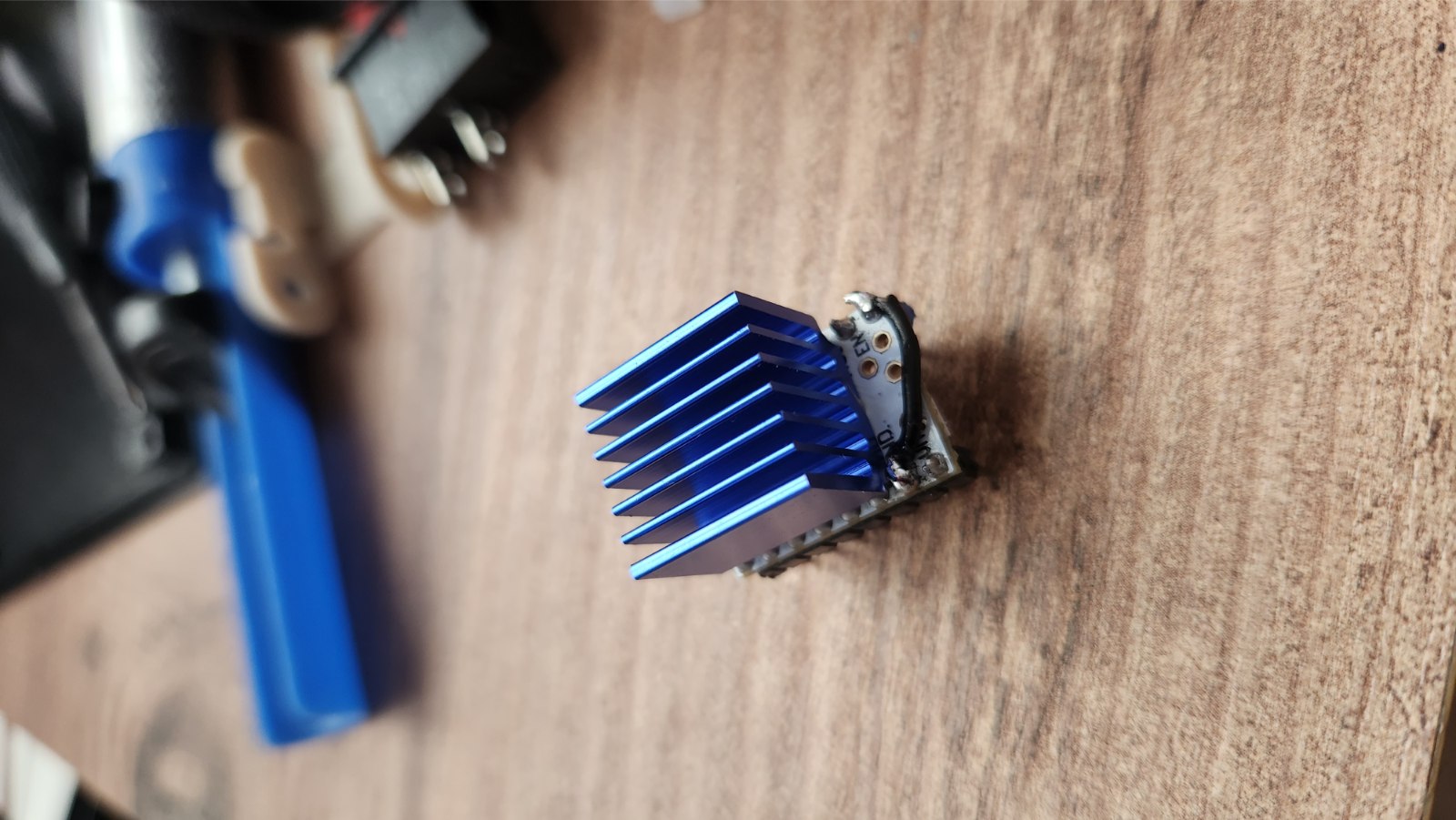
The TMC2208 has a small potentiometer for current adjustment. For the Shuffle's Z-axis motor, I set it to approximately 800mA RMS. Use this formula:
Vref = I_rms × 1.41 × R_sense × 2
The trick is, I’ve connected the motor driver with long female-male jumpers. Then I connected a probe to my screw driver, and other one to ground. I set the voltage between the potentiometer and ground to a safe level. 0.8v seems to be safe. I tried moving Z-axis from UI. I increased the voltage until it moves normally. Then I added a tiny bit of weight to build plate. I increased the voltage until build plate moves with the weight. The reason I did that is simple, I don’t want my stepper motor to run at its RMS current always. By giving it just enough current, we can increase the life of both stepper motor and motor driver.
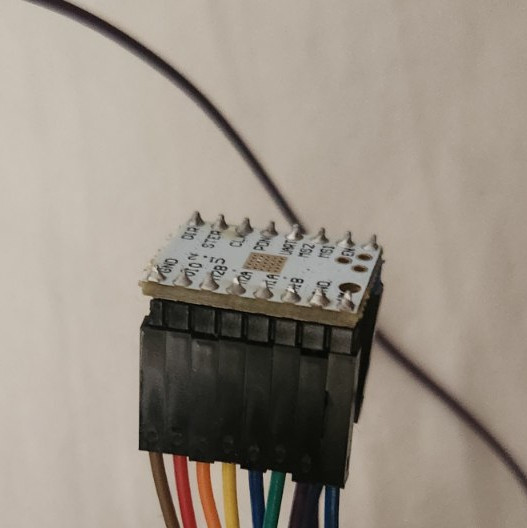
Now my 3D Printer is nearly silent, it is time to NanoDLP Upgrade.
NanoDLP Upgrade
The Phrozen Shuffle runs Armbian on its Orange Pi, but SSH isn't enabled by default and the root password is unknown. Here's how to gain access:
Power off the printer and remove the SD card
Mount the SD card on a Linux computer
Set a known root password:
ENCRYPTED_PW=$(openssl passwd -6 orange)
echo $ENCRYPTED_PW

sudo sed -i "s|^root:[^:]*|root:$ENCRYPTED_PW|" etc/shadow
Password is now “orange”. Just like normal OrangePIs. You can set it to antything you want.
Enable SSH root login:
# Force PermitRootLogin to yes
sudo sed -i 's/^#PermitRootLogin.*/PermitRootLogin yes/' etc/ssh/sshd_config

# Ensure PasswordAuthentication is enabled
sudo sed -i 's/^#PasswordAuthentication yes/PasswordAuthentication yes/' etc/ssh/sshd_config

# Verify the change
grep "PermitRootLogin" etc/ssh/sshd_config
Sync and unmount:
syncNow you can ssh into printer.
ssh root@<printer-ip>
# Password: orange
Before attempting NanoDLP integration, I needed to understand how the stock Phrozen firmware worked. This involved mounting the SD card and exploring the filesystem.
The first clue was /etc/rc.local:
#!/bin/sh -e
clear
setterm -foreground black -background black -store
setterm -cursor off
clear
setterm -blank
/root/python.sla/runall.sh
exit 0
Then /root/python.sla/runall.sh revealed the multi-process architecture:
#!/bin/bash
cat /dev/zero > /dev/fb0
sleep 2
cd /root/python.sla
sudo python3 /root/python.sla/1_gcode.py > /dev/null 2>&1 &
sudo python3 /root/python.sla/2_png.py > /dev/null 2>&1 &
sudo python3 /root/python.sla/3_prnsrv.py > /dev/null 2>&1 &
sudo python3 /root/python.sla/printer_v7.py runserver --port 80 --host 0.0.0.0 --processes 10 > /dev/null 2>&1 &
sleep 2
sudo python3 /root/python.sla/6_hmi.py > /dev/null 2>&1 &
/root/python.sla/ => this is where original firmware lies. Also there are some interesting stuff in bash history. You can check it yourself if you are curious.
The Python files turned out to be single-line stubs importing compiled Cython modules:
# 1_gcode.py
import gbrl_gcode_mqtt

# 2_png.py
import png_mqtt_v2

# 3_prnsrv.py
import print_chitu_mqtt_v4

# 6_hmi.py
import hmi_main_4k_v2
I've extracted strings from compiled Python binaries:
# Find baud rate
strings *.so | grep -E "9600|115200|250000"
# Result: __pyx_int_115200 (multiple times)

# Find serial port (revealed macOS development origin!)
strings gbrlClass.cpython-36m-arm-linux-gnueabihf.so | grep -i "tty"
# Result: /dev/tty.usbserial-AC00HEB6

# Find G-code commands
strings gbrl_gcode_mqtt.cpython-36m-arm-linux-gnueabihf.so | grep -iE "G[0-9]|M[0-9]"
# Results: G28, G90, G91, G1, M106, M107, M114
The firmware uses Mosquitto MQTT broker for inter-process communication:
# From printer_v7.py (the readable Flask app)
grep -r "printer/" /root/python.sla/*.py
This revealed the MQTT topics:
Topic Purpose
printer/gcode G-code commands to motion controller
printer/printchitu Start print, it has chitu, quite interesting it can't connect ChituBox
jobprinter/resume R=resume, P=pause
printer/hmicontrol rebootshutdown
printer/pngLayer image display
No MCU firmware on SD card - The motion controller was pre-programmed at factory. No avrdude, no .hex files, no way to update it from Linux.
Developed on macOS - The /dev/tty.usbserial-AC00HEB6 path in compiled modules revealed development environment.
Standard GRBL - Despite being compiled, the motion controller speaks standard GRBL with custom extensions ($HZ for Z-only homing).
Simple update mechanism - phupdate.sh just extracts a tarball from USB to /root, no MCU firmware flashing.
Understanding the architecture made NanoDLP integration seem straightforward:
Motion is standard GRBL on /dev/ttyS1 at 115200 baud
Display is standard Linux framebuffer
UV LED uses standard M106/M107 G-code
Only the HMI touchscreen uses proprietary DWIN DGUS protocol
From my understanding, while not fully open source, NanoDLP is essentially the Klipper or Mainsail of the SLA world; offering better slicer compatibility and control than the obscure stock firmware.
# Download NanoDLP
cd /root
mkdir printer && cd printer
wget https://www.nanodlp.com/download/nanodlp.linux.arm.stable.tar.gz
tar -xzf nanodlp.linux.arm.stable.tar.gz

# Disable Phrozen firmware
mv /root/python.sla /root/python.sla.disabled

# Create startup script
cat > /root/start_nanodlp.sh << 'EOF'
#!/bin/bash
cd /root/printer
./nanodlp &
EOF
chmod +x /root/start_nanodlp.sh

# Edit rc.local to run NanoDLP on boot
cat > /etc/rc.local << 'EOF'
#!/bin/bash
/root/start_nanodlp.sh
exit 0
EOF
chmod +x /etc/rc.local

# Reboot to test
reboot
I started doing configurations. NanoDLP stores configuration in /root/printer/db/config.json:
{
  "ProjectorWidth": 1440,
  "ProjectorHeight": 2560,
  "XResolution": 1440,
  "YResolution": 2560,
  "SerialPort": "/dev/ttyS1",
  "SerialBaud": 115200,
  "SerialProtocol": "grbl",
  "DisplayDriver": "fb",
  "FramebufferDevice": "/dev/fb0",
  "ZAxisStepsPerMM": 800,
  "MaxHeight": 200,
  "ShutterType": "gcode",
  "ShutterOpenGcode": "M106 S255",
  "ShutterCloseGcode": "M107",
  "HomingGcode": "G28\nG90",
  "Path": "/root/printer/db/",
  "TempPath": "/tmp/",
  "SupportedFileTypes": ["sl1", "photon", "cbddlp", "photons", "zip", "phz"],
  "PixelSize": 0.05,
  "BlankTime": 500,
  "Port": 8080
}
while these might be valid, we have to configure these further in Nanodlp UI. Also I've found out that the fans are controlled with GPIO pins. I can't turn on them via GRBL. So I wrote a script to control them.
#!/usr/bin/env python3
import sys
sys.path.insert(0, '/root/python.sla.disabled')
import class_gpio

GPIO = class_gpio.GPIO()
GPIO.mode("1", "out")

if len(sys.argv) > 1:
    if sys.argv[1] == "on":
        GPIO.write("1", "1")
    elif sys.argv[1] == "off":
        GPIO.write("1", "0")
else:
    print("Usage: fan_control.py [on|off]")
Save it to " /root/fan_control.py" we will use it later.
I edited the startup script:
#!/bin/bash
# Clear framebuffer (black screen)
cat /dev/zero > /dev/fb0 2>/dev/null
# Wait for system to settle
sleep 3
# Start NanoDLP
cd /root/printer
./nanodlp &
# Log startup
echo "NanoDLP started at $(date)" >> /var/log/nanodlp.log
First you have to access to NanoDLP at http://<printer-ip>:80
Then it will ask you for the brand of your printer. I picked Phrozen. Then NanoDLP url is set to http://<printer-ip>:8080.
I started setting the NanoDLP from webUI.
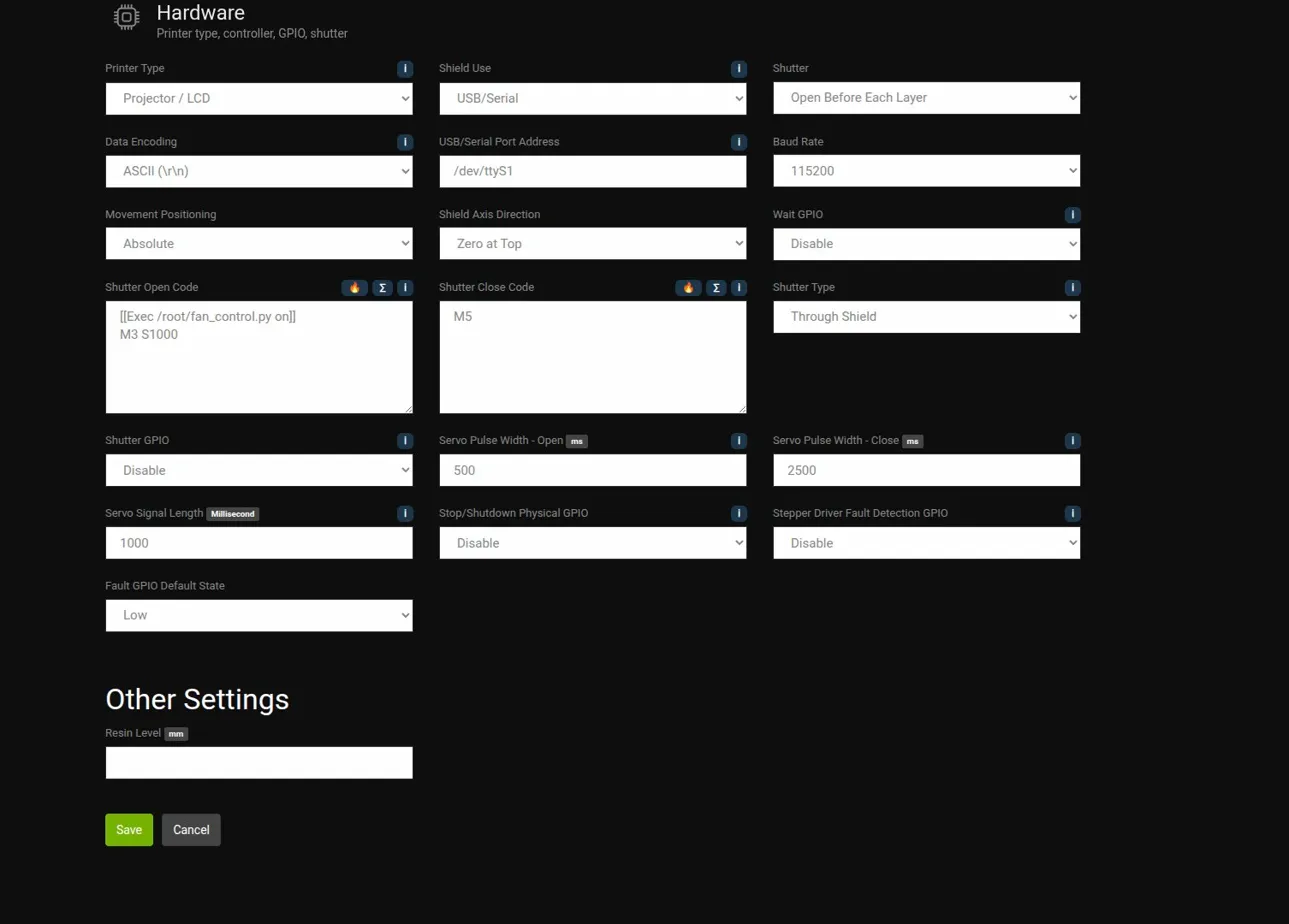
Here take a look at exec command. It calls our custom python code to turn on fan before showing anything on screen, to keep our leds cool. Also one mistake here is we should set shield axis direction to Zero at Bottom.
One of the problems, and the biggest one is while setting up GCode's, we can't use [[WaitForDoneMessage]] like the standard ones. Because GRBL returns "ok" message after each command. Not "Z_move_comp" as NanoDLP excepts. NanoDLP Docs
We have to use
[[ResponseCheck]]
G1 X1.1
[[ResponseCheck 1 1]]
However, I found out that the homing command, "$HZ" is not returning when completed. We had to delay a safe amount for homing progress.
$HZ
[[Delay 45]]
[[PositionSet 0]]
So our start printing command would be:
[[Exec /root/fan_control.py on]]
$X
[[Delay 1.0]]
$HZ
[[Delay 45]]
[[PositionSet 0]]Here the "$X" unlocks printer. I added this also to the boot gcode sequence, so I can run diagnostics before printing.
These are my findings until that point. Then I tried printing but never got it work because that "ok" or "z_move_comp" issue. The printer doesn't home correctly, also it doesn't wait for commands. Maybe the official firmware is using a GPIO pin to see when a command is completed. But hunting for GPIO pins is hard.
For NanoDLP to work properly with the Phrozen Shuffle, you would need either:
Custom GRBL firmware patched to send NanoDLP-compatible responses
Replace the GRBL board with a RAMPS board connected to the Orange Pi's UART
Serial translator that converts GRBL responses to RAMPS format
I ultimately decided to revert to the stock Phrozen firmware, which works reliably with the TMC2208 upgrade. As only single benefit of NanoDLP for me to sync Resin profiles from my slicer is not working too. The slicers don't think my printer has NanoDLP and community Resin profiles seems to be empty as everyone seems to be using. For a future project I might replace the GRBL board with Ramps. But at that point I would be building the printer from scratch.
For anyone interested running this thing with NanoDLP, I also did a research on how we can get touchscreen of it to work. It is a DWIN HMI screen. They use a custom protocol.
This is a custom Python script that tests the HMI screen that I made Claude write over my findings:
#!/usr/bin/env python3
import serial
import struct
import time
import threading

class PhrozenHMI:
    HEADER = bytes([0x5A, 0xA5])
    CMD_WRITE = 0x82
    CMD_READ = 0x83

    # Page IDs (VERIFIED from capture)
    PAGE_HOME = 0x04        # Home/plates list
    PAGE_FILE_DETAIL = 0x08 # File preview with thumbnail
    PAGE_PRINTING = 0x0C    # Active print
    PAGE_WIFI_SCAN = 0x38   # WiFi scanning animation
    PAGE_WIFI_LIST = 0x1E   # WiFi network list
    PAGE_WIFI_PASS = 0x32   # WiFi password entry
    PAGE_PAUSE = 0x2A       # Paused / print finished
    PAGE_CONFIRM = 0x34     # Confirmation dialogs

    # Addresses (VERIFIED - note: 0x1100 not 0x0011!)
    ADDR_INIT = 0x0082           # Init register
    ADDR_PAGE = 0x0084           # Page switch
    ADDR_STATUS_BAR = 0x3800     # "(hostname)IP"
    ADDR_PAGE_IND = 0x2C00       # "P:x/y"
    ADDR_DIALOG = 0x3900         # Dialog text
    ADDR_PAUSE_MSG = 0x2F00      # Pause/WiFi status message
    ADDR_CTRL1 = 0x4890          # Control register 1
    ADDR_CTRL2 = 0x4820          # Control register 2 (brightness?)

    # File list (6 slots)
    ADDR_FILE = [0x1100, 0x1200, 0x1300, 0x1400, 0x1500, 0x1600]

    # Resin list
    ADDR_RESIN = [0x1E00, 0x1F00, 0x2000, 0x2100, 0x2200]

    # WiFi list (5 slots)
    ADDR_WIFI = [0x2700, 0x2800, 0x2900, 0x2A00, 0x2B00]
    ADDR_WIFI_SSID = 0x3600      # Selected SSID for connection
    ADDR_WIFI_PASS = 0x3700      # Password input
    ADDR_WIFI_STATUS = 0x2F00    # "connect wi-fi success !" or "connect wi-fi Fail !"

    # Print screen
    ADDR_PRINT_FILE = 0x1700     # Filename
    ADDR_PRINT_LAYER = 0x1800    # "x/y"
    ADDR_PRINT_RESIN = 0x1900    # Resin name
    ADDR_PRINT_TIME = 0x1A00     # "X Hr : Y Min"

    def __init__(self, port='/dev/ttyS2', baud=115200):
        self.port = port
        self.baud = baud
        self.ser = None
        self.listener_thread = None
        self.running = False
        self.on_button = None  # Callback for button events

        # Button addresses (from display -> Orange Pi)
        self.BTN_WIFI = 0x4810      # WiFi/Settings button
        self.BTN_SELECT = 0x4240    # Select item in list (WiFi network, file, etc)
        self.BTN_CONNECT = 0x4780   # Connect button (triggers password read)
        self.BTN_HOME = 0x40B0      # Home button
        self.BTN_BACK = 0x42A0      # Back button
        self.BTN_CONFIRM = 0x43A0   # Confirm/OK button

        # WiFi password storage
        self.wifi_password = ""     # Password to send when display asks

    def connect(self):
        self.ser = serial.Serial(self.port, self.baud, timeout=0.1)
        print("[OK] Connected to %s" % self.port)
        return True

    def start_listener(self):
        """Start background thread to listen for button events"""
        self.running = True
        self.listener_thread = threading.Thread(target=self._listen_loop, daemon=True)
        self.listener_thread.start()
        print("[OK] Button listener started")

    def _listen_loop(self):
        """Background loop for button events"""
        buffer = b''
        while self.running:
            try:
                if self.ser and self.ser.in_waiting:
                    data = self.ser.read(self.ser.in_waiting)
                    buffer += data

                    # Look for button event frames: 5A A5 06 83 XX XX 01 00 00
                    while len(buffer) >= 9:
                        idx = buffer.find(self.HEADER)
                        if idx == -1:
                            buffer = b''
                            break
                        if idx > 0:
                            buffer = buffer[idx:]

                        if len(buffer) < 3:
                            break

                        frame_len = buffer[2]
                        total_len = 3 + frame_len

                        if len(buffer) < total_len:
                            break

                        frame = buffer[:total_len]
                        buffer = buffer[total_len:]

                        # Skip OK responses
                        if b'OK' in frame:
                            continue

                        # Check command type
                        if len(frame) >= 6 and frame[3] == 0x83:
                            addr = struct.unpack('>H', frame[4:6])[0]

                            # Check if it's a read request (short frame with length byte)
                            # Format: 5A A5 04 83 [addr_hi] [addr_lo] [length]
                            if len(frame) == 7:
                                req_len = frame[6]
                                self._handle_read_request(addr, req_len)
                            else:
                                # Button press
                                self._handle_button(addr, frame)
                else:
                    time.sleep(0.05)
            except:
                time.sleep(0.1)

    def _handle_button(self, addr, frame):
        """Handle button press from display"""
        btn_name = {
            self.BTN_WIFI: "WIFI",
            self.BTN_SELECT: "SELECT",
            self.BTN_CONNECT: "CONNECT",
            self.BTN_HOME: "HOME",
            self.BTN_BACK: "BACK",
            self.BTN_CONFIRM: "CONFIRM",
        }.get(addr, None)

        if btn_name:
            print("\n[BTN] %s (0x%04X)" % (btn_name, addr))

        if self.on_button:
            self.on_button(btn_name, addr)

    def _handle_read_request(self, addr, length):
        """Handle read request from display (e.g., password read)"""
        if addr == 0x3700:  # Password read
            print("\n[READ] Password requested, sending: %s" % self.wifi_password)
            self._send_read_response(addr, length, self.wifi_password)

    def _send_read_response(self, addr, length, text):
        """Send response to read request"""
        # Format: 5A A5 [len] 83 [addr_hi] [addr_lo] [req_len] [data...]
        data = text.encode('utf-8')[:length]
        # Pad with 0xFF then spaces
        if len(data) < length:
            data = data + b'\xff\xff'
            data = data.ljust(length + 5, b' ')  # Extra padding like Phrozen

        payload = bytes([0x83]) + struct.pack('>H', addr) + bytes([length]) + data
        frame = self.HEADER + bytes([len(payload)]) + payload

        print("  TX (read response): %s" % ' '.join('%02X' % b for b in frame))
        self.ser.write(frame)

    def disconnect(self):
        self.running = False
        if self.listener_thread:
            self.listener_thread.join(timeout=1)
        if self.ser:
            self.ser.close()
        print("[OK] Disconnected")

    def send(self, addr, data):
        """Send frame to HMI"""
        payload = bytes([self.CMD_WRITE]) + struct.pack('>H', addr) + data
        frame = self.HEADER + bytes([len(payload)]) + payload

        print("  TX: %s" % ' '.join('%02X' % b for b in frame))
        self.ser.write(frame)
        time.sleep(0.03)

        resp = self.ser.read(10)
        if resp:
            print("  RX: %s" % ' '.join('%02X' % b for b in resp))
        return b'OK' in resp

    def write_text(self, addr, text, length=40):
        """Write text to address"""
        data = text.encode('utf-8')[:length]
        data = data.ljust(length, b' ')  # Pad with spaces, not nulls
        return self.send(addr, data)

    def switch_page(self, page):
        """Switch to page - CORRECT format from capture"""
        # Format: 5A 01 00 [page]
        data = bytes([0x5A, 0x01, 0x00, page])
        return self.send(self.ADDR_PAGE, data)

    def init_display(self):
        """Send init sequence like Phrozen does at boot"""
        # Init register
        self.send(self.ADDR_INIT, bytes([0x64, 0x10, 0xEA, 0x60]))
        # Control register
        self.send(self.ADDR_CTRL1, bytes([0x00, 0x00]))

    def show_home(self, files=None, ip="192.168.1.153", hostname="NanoDLP"):
        """Show home screen with file list"""
        print("\n[HOME] Showing home screen...")

        # Init
        self.init_display()

        # Status bar
        status = "(%s)%s" % (hostname, ip)
        self.write_text(self.ADDR_STATUS_BAR, status, 80)

        # Switch to home page
        self.switch_page(self.PAGE_HOME)

        # Clear file slots first (with spaces like Phrozen does)
        for addr in self.ADDR_FILE:
            self.write_text(addr, "", 40)

        # Populate files
        if files:
            for i, fname in enumerate(files[:6]):
                self.write_text(self.ADDR_FILE[i], fname, 40)

        # Page indicator
        self.write_text(self.ADDR_PAGE_IND, "P:1/1", 10)

        print("[OK] Home screen shown")

    def show_file_detail(self, filename, layers, resin):
        """Show file detail screen"""
        print("\n[FILE] Showing file detail: %s" % filename)

        self.switch_page(self.PAGE_FILE_DETAIL)
        self.write_text(self.ADDR_PRINT_FILE, filename, 44)
        self.write_text(self.ADDR_PRINT_LAYER, str(layers), 20)
        self.write_text(self.ADDR_PRINT_RESIN, resin, 40)

        print("[OK] File detail shown")

    def show_confirm(self, message):
        """Show confirmation dialog"""
        print("\n[CONFIRM] %s" % message)

        self.switch_page(self.PAGE_CONFIRM)
        self.write_text(self.ADDR_DIALOG, message, 40)

    def show_printing(self, filename, layer, total, resin, time_str):
        """Show print status screen"""
        print("\n[PRINT] Layer %d/%d" % (layer, total))

        self.switch_page(self.PAGE_PRINTING)
        self.write_text(self.ADDR_PRINT_FILE, filename, 44)
        self.write_text(self.ADDR_PRINT_LAYER, "%d/%d" % (layer, total), 20)
        self.write_text(self.ADDR_PRINT_RESIN, resin, 40)
        self.write_text(self.ADDR_PRINT_TIME, time_str, 20)

    def show_pause(self, message="Printer pause , press OK to resume !"):
        """Show pause screen"""
        print("\n[PAUSE] %s" % message)

        self.switch_page(self.PAGE_PAUSE)
        self.write_text(self.ADDR_PAUSE_MSG, message, 44)

    def show_wifi_scan(self):
        """Show WiFi scanning animation"""
        print("\n[WIFI] Scanning...")
        self.switch_page(self.PAGE_WIFI_SCAN)

    def show_wifi_list(self, networks=None):
        """Show WiFi network list"""
        print("\n[WIFI] Showing network list...")

        # Show scanning animation first
        self.switch_page(self.PAGE_WIFI_SCAN)
        self.send(self.ADDR_CTRL2, bytes([0x00, 0xFF]))
        self.write_text(self.ADDR_STATUS_BAR, "(NanoDLP)%s" % self.get_current_ip(), 80)

        # Clear WiFi slots
        for addr in self.ADDR_WIFI:
            self.write_text(addr, "", 40)

        # Populate networks
        if networks:
            for i, ssid in enumerate(networks[:5]):
                self.write_text(self.ADDR_WIFI[i], ssid, 40)

        # Switch to WiFi list page
        self.switch_page(self.PAGE_WIFI_LIST)

        # Page indicator
        total = len(networks) if networks else 0
        self.write_text(self.ADDR_PAGE_IND, "P:1/%d" % max(1, (total + 4) // 5), 10)

        print("[OK] WiFi list shown")

    def show_wifi_password(self, ssid):
        """Show WiFi password entry screen"""
        print("\n[WIFI] Password entry for: %s" % ssid)

        self.switch_page(self.PAGE_WIFI_PASS)
        self.write_text(self.ADDR_WIFI_SSID, ssid, 40)
        self.write_text(self.ADDR_WIFI_PASS, "", 40)  # Clear password

    def wifi_connect_status(self, success, ssid=None):
        """Show WiFi connection status"""
        if success:
            msg = "connect wi-fi success !"
            print("\n[WIFI] Connected!")
        else:
            msg = "connect wi-fi Fail !"
            print("\n[WIFI] Connection failed!")

        self.write_text(self.ADDR_WIFI_STATUS, msg, 44)

    def scan_wifi_networks(self):
        """Scan for WiFi networks using nmcli"""
        import subprocess
        networks = []
        try:
            result = subprocess.run(
                ['nmcli', '-t', '-f', 'SSID', 'dev', 'wifi', 'list'],
                stdout=subprocess.PIPE, stderr=subprocess.PIPE,
                timeout=10
            )
            for line in result.stdout.decode().strip().split('\n'):
                ssid = line.strip()
                if ssid and ssid not in networks:
                    networks.append(ssid)
        except Exception as e:
            print("Error scanning: %s" % e)
        return networks[:5]

    def connect_wifi(self, ssid, password=""):
        """Connect to WiFi network using nmcli"""
        import subprocess
        try:
            if password:
                cmd = ['nmcli', 'dev', 'wifi', 'connect', ssid, 'password', password]
            else:
                cmd = ['nmcli', 'dev', 'wifi', 'connect', ssid]

            result = subprocess.run(cmd, stdout=subprocess.PIPE, stderr=subprocess.PIPE, timeout=30)
            return result.returncode == 0
        except Exception as e:
            print("Error connecting: %s" % e)
            return False

    def get_current_ip(self):
        """Get current IP address"""
        import subprocess
        try:
            result = subprocess.run(
                ['hostname', '-I'],
                stdout=subprocess.PIPE, stderr=subprocess.PIPE,
                timeout=5
            )
            ip = result.stdout.decode().strip().split()[0]
            return ip
        except:
            return "0.0.0.0"

    def get_current_ssid(self):
        """Get current WiFi SSID"""
        import subprocess
        try:
            result = subprocess.run(
                ['nmcli', '-t', '-f', 'ACTIVE,SSID', 'dev', 'wifi'],
                stdout=subprocess.PIPE, stderr=subprocess.PIPE,
                timeout=5
            )
            for line in result.stdout.decode().strip().split('\n'):
                if line.startswith('yes:'):
                    return line.split(':')[1]
        except:
            pass
        return ""


def main():
    hmi = PhrozenHMI()

    if not hmi.connect():
        return

    # Start button listener
    hmi.start_listener()

    # Track state for WiFi flow
    state = {'selected_ssid': None, 'networks': []}

    def on_button(name, addr):
        """Handle button presses from touchscreen"""
        if name == "SELECT":
            # User tapped a WiFi network - show password screen
            # We don't know which one they tapped, but display will tell us
            print("     -> Network selected, password screen should appear")
        elif name == "CONNECT":
            # Connect button tapped - display will read password
            print("     -> Connect tapped, password will be sent")

    hmi.on_button = on_button

    files = [
        "calibration_cube.zip",
        "mini_figure.zip",
        "gear_set.zip",
        "phone_stand.zip",
        "dice_tower.zip",
    ]

    print("\n" + "="*50)
    print("Phrozen HMI Controller - With WiFi Support")
    print("="*50)
    print("Commands:")
    print("  1 - Home screen")
    print("  2 - File detail")
    print("  3 - Print screen")
    print("  4 - Pause screen")
    print("  5 - Confirm dialog")
    print("  6 - WiFi scan & list")
    print("  7 - Set WiFi password (7 <password>)")
    print("  8 - WiFi connect via nmcli (8 <ssid> [password])")
    print("  p - Test page (p 04, p 08, etc)")
    print("  0 - Exit")
    print("")
    print("Touchscreen buttons will be detected!")
    print("When you tap a WiFi network, it reads password from here.")
    print("="*50)

    try:
        while True:
            cmd = input("\n> ").strip()

            if cmd == "0":
                break
            elif cmd == "1":
                hmi.show_home(files)
            elif cmd == "2":
                hmi.show_file_detail("test_model.zip", 100, "Anycubic Clear")
            elif cmd == "3":
                hmi.show_printing("test_model.zip", 25, 100, "Anycubic Clear", "1 Hr : 30 Min")
            elif cmd == "4":
                hmi.show_pause()
            elif cmd == "5":
                hmi.show_confirm("Do you want to start printing ?")
            elif cmd == "6":
                # Scan and show WiFi networks
                hmi.show_wifi_scan()
                print("Scanning networks...")
                networks = hmi.scan_wifi_networks()
                print("Found: %s" % networks)
                hmi.show_wifi_list(networks)
            elif cmd.startswith("7 "):
                # Set WiFi password for when display asks
                password = cmd[2:].strip()
                hmi.wifi_password = password
                print("[OK] WiFi password set to: %s" % password)
                print("     Now tap Connect on the touchscreen!")
            elif cmd.startswith("8 "):
                # Connect to WiFi via nmcli: 8 <ssid> [password]
                parts = cmd.split(maxsplit=2)
                ssid = parts[1] if len(parts) > 1 else ""
                password = parts[2] if len(parts) > 2 else ""

                if ssid:
                    hmi.show_wifi_password(ssid)
                    print("Connecting to %s..." % ssid)
                    success = hmi.connect_wifi(ssid, password)
                    hmi.wifi_connect_status(success, ssid)

                    if success:
                        # Update status bar with new connection
                        ip = hmi.get_current_ip()
                        hmi.write_text(hmi.ADDR_STATUS_BAR,
                            "(NanoDLP)%s (%s)" % (ip, ssid), 80)
                        time.sleep(2)
                        hmi.show_home(files)
                else:
                    print("Usage: 8 <ssid> [password]")
            elif cmd.startswith("p "):
                try:
                    page = int(cmd[2:], 16)
                    print("Switching to page 0x%02X..." % page)
                    hmi.switch_page(page)
                except:
                    print("Usage: p 04")
            else:
                print("Unknown command")

    except KeyboardInterrupt:
        pass
    finally:
        hmi.disconnect()


if __name__ == "__main__":
    main()
DWIN DGUS protocol is strictly Little-Endian for data values, but the addresses are Big-Endian.
The plan were connect it to NanoDLP API but as I ditched and now happy with official Phrozen firmware, that would not be beneficial for me. To capture HMI communication you can use this method:
# Install interceptty or use socat
apt-get install socat

# Create a sniffer between Orange Pi and HMI
# First, rename original port
mv /dev/ttyS2 /dev/ttyS2_real

# Create interceptor that logs traffic
socat -v /dev/ttyS2_real,raw,echo=0,b115200 PTY,link=/dev/ttyS2,raw,echo=0 2>&1 | tee /tmp/hmi_traffic.log &

# Now start Phrozen firmware
cd /root/python.sla.disabled
./runall.sh &

# Press buttons on touchscreen, watch the log
cat /tmp/hmi_traffic.log
The TMC2208 upgrade was a complete success - the printer is now whisper-quiet during operation. The NanoDLP attempt, while unsuccessful due to GRBL compatibility issues, led to a deep understanding of the printer's architecture and a fully documented HMI protocol.
For anyone looking to silence their Phrozen Shuffle, the stepper driver upgrade is highly recommended. For those wanting NanoDLP, be prepared to either modify the GRBL firmware or replace the motion controller entirely. Or you just need to do GPIO hunting.
I also heard that NanoDLP could be configured to poll "?" (status command) constantly to check if priner is in "Idle" or "Run" state. But I was not able to see this in UI. Maybe a script that injects itself to serial communication and it does that "?" polling and returns "Z_move_comp" properly. But as I said I won't be the getting benefits I wanted from NanoDLP to put more effort to it.
If anyone can get NanoDLP run with original hardware please let me know.